
Before you get started syncing Google Tasks and monday.com, here are a few things to know to make sure everything runs smoothly.
1. Accounts You’ll Need
-
A monday.com account with access to the workspace or board you want to sync tasks with
-
A Google account that you use with Google Tasks or Google Calendar (usually linked to Gmail).
2. Access and permissions
To connect the two platforms, you’ll be asked to grant permission for monday.com to read and update your Google Tasks and/or Calendar.
-
This step is secure and only allows access to the data needed for syncing.
-
Once connected, synced tasks and events will appear on your monday.com board just like any other items.
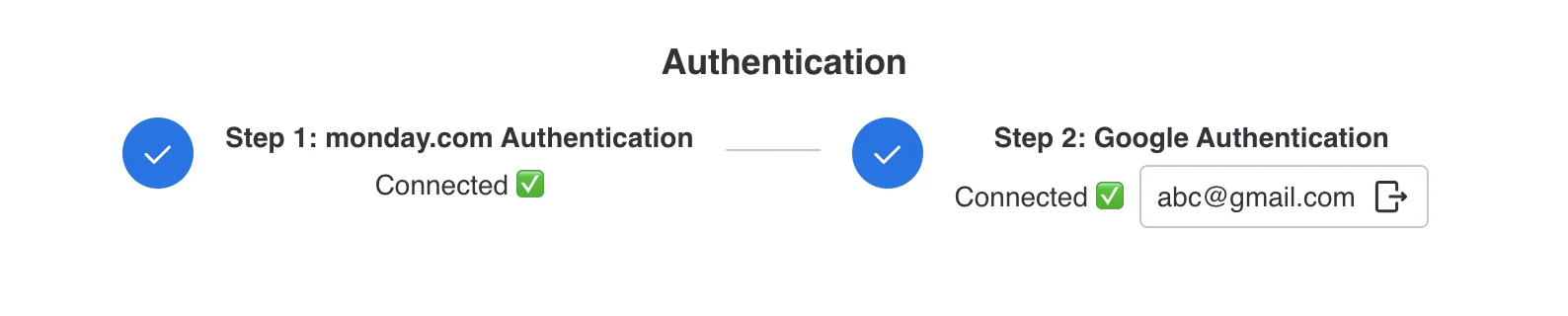
✅ With accounts and permissions ready, you’re all set to start syncing.
More in Google Tasks & Calendar Sync (monday.com)
- Key Features & How It Works
- What is Google Tasks & Calendar Sync for monday.com? What does this app do?
- Billing and Refund Policy
- Upgrading or Downgrading Plans
- Plan & Pricing
- Do I need to connect both accounts?
- How can I change the Google account?
- Google Tasks & Calendar Sync – Installation & Setup Guide