Once your monday.com group is linked to a Google Tasks list, it’s time to decide how task information will appear on your board.
In this step, you’ll see how each part of a Google Tasks and Calendar connects to a specific column in monday.com.
Field & Event Mapping
Map details from Google to monday columns:
-
Task Title / Event Name → Text column
-
Status → Status column
-
Due Date / Event Date → Date column
-
Task Link / Meeting Link → Link column
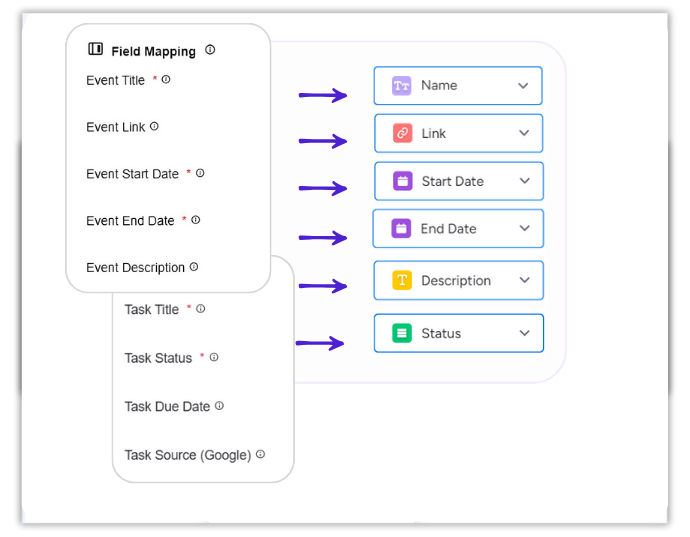
Need a new column? Select Add Column, name it, and assign it to the Google field you want.
Sync Direction & Options
Decide how data flows:
-
One-way (Google → monday or monday → Google)
-
Two-way sync (updates both sides)

Save Setting
Don’t forget to click Save Setting button once you’ve setup all the fields. By doing this your column mappings is set.
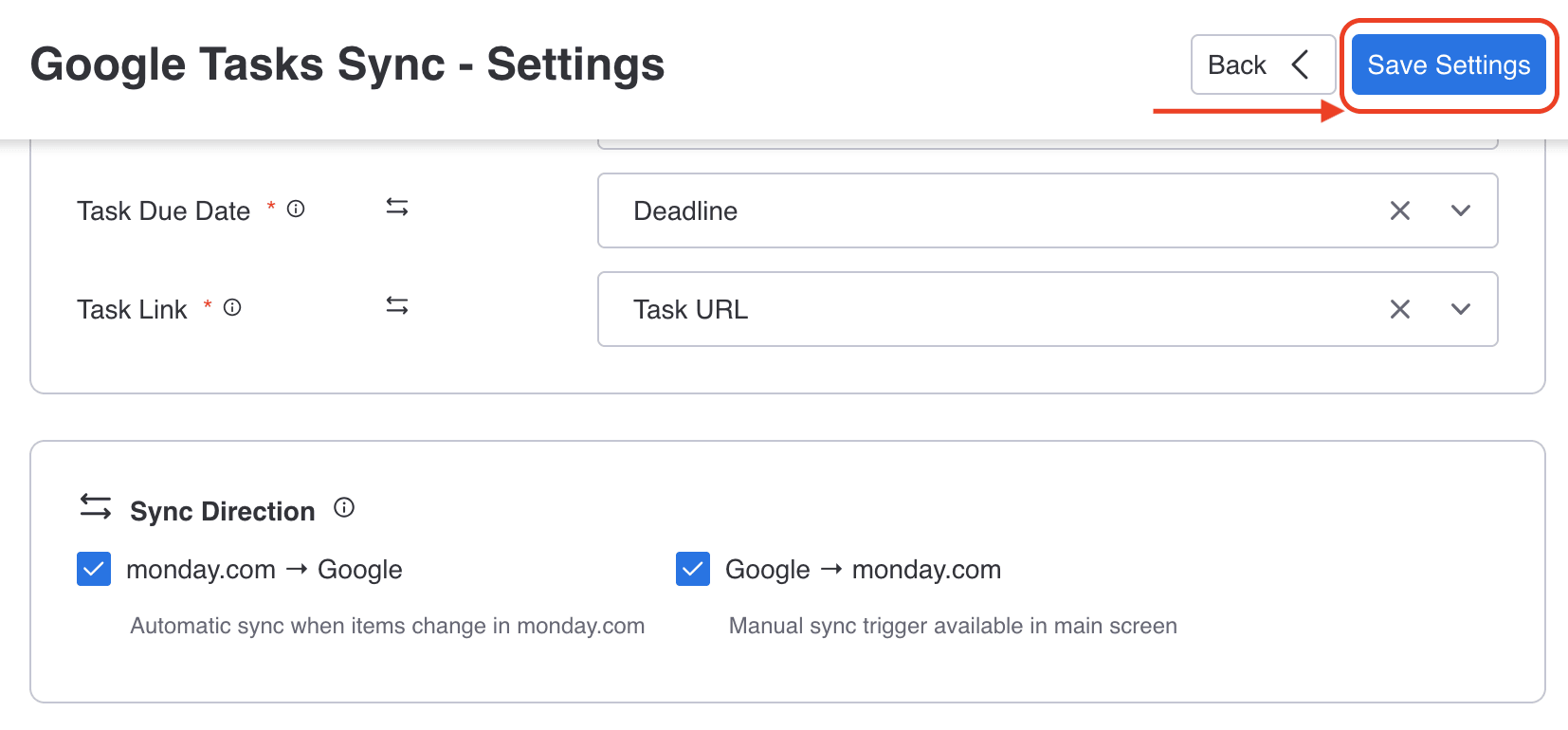
This is how you set up the integration and configure syncing between monday.com and Google Tasks.