
Once the app is installed and your accounts are connected, it’s time to set up your sync the way you want it.
You can connect multiple monday groups to different Google Tasks lists or Google Calendars.
Example:
-
“Onboarding” group → New Hire Task List
-
“Team Projects” group → Team Calendar
-
“Events” group → Company Calendar
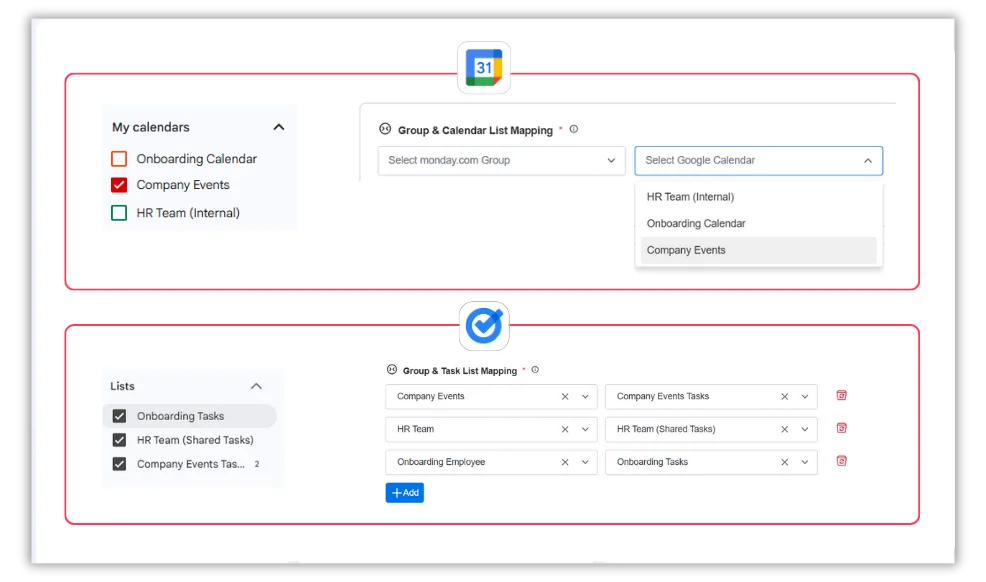
To add another sync, click Add. To stop a sync, click the Delete icon — tasks and events stay safe on both sides.
Once everything’s mapped just the way you like, your tasks will start syncing automatically, keeping your work aligned, organized, and always up to date.
More in Google Tasks & Calendar Sync (monday.com)
- Key Features & How It Works
- What is Google Tasks & Calendar Sync for monday.com? What does this app do?
- Billing and Refund Policy
- Upgrading or Downgrading Plans
- Plan & Pricing
- Do I need to connect both accounts?
- How can I change the Google account?
- Google Tasks & Calendar Sync – Installation & Setup Guide