
We know that getting started should be quick and easy, so we made installing Google Tasks & Calendar Sync as smooth as possible.
In just a couple of steps, you’ll have the app added to your board and ready to go.
1. Install the App
- Visit the monday.com marketplace, find Google Tasks & Calendar Sync, and install it to your account.
Open your board → click the + icon at the top → select Apps → choose Google Tasks & Calendar Sync from the installed list.
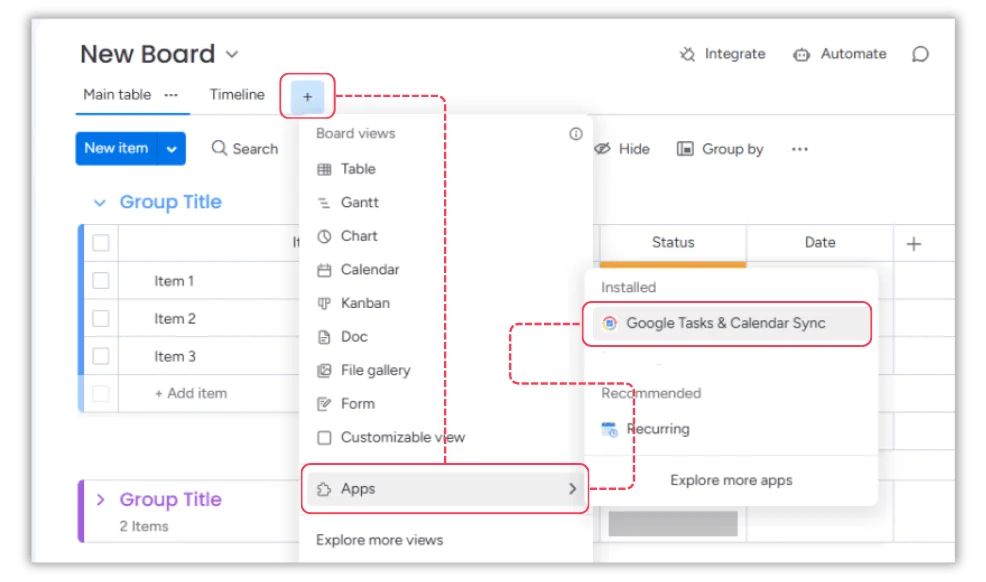
You’ll be taken to the authentication page to connect your accounts.
2. Authenticate Your Accounts
- Step 1: Authenticate with monday.com
Approve access so the app can integrate with your board.
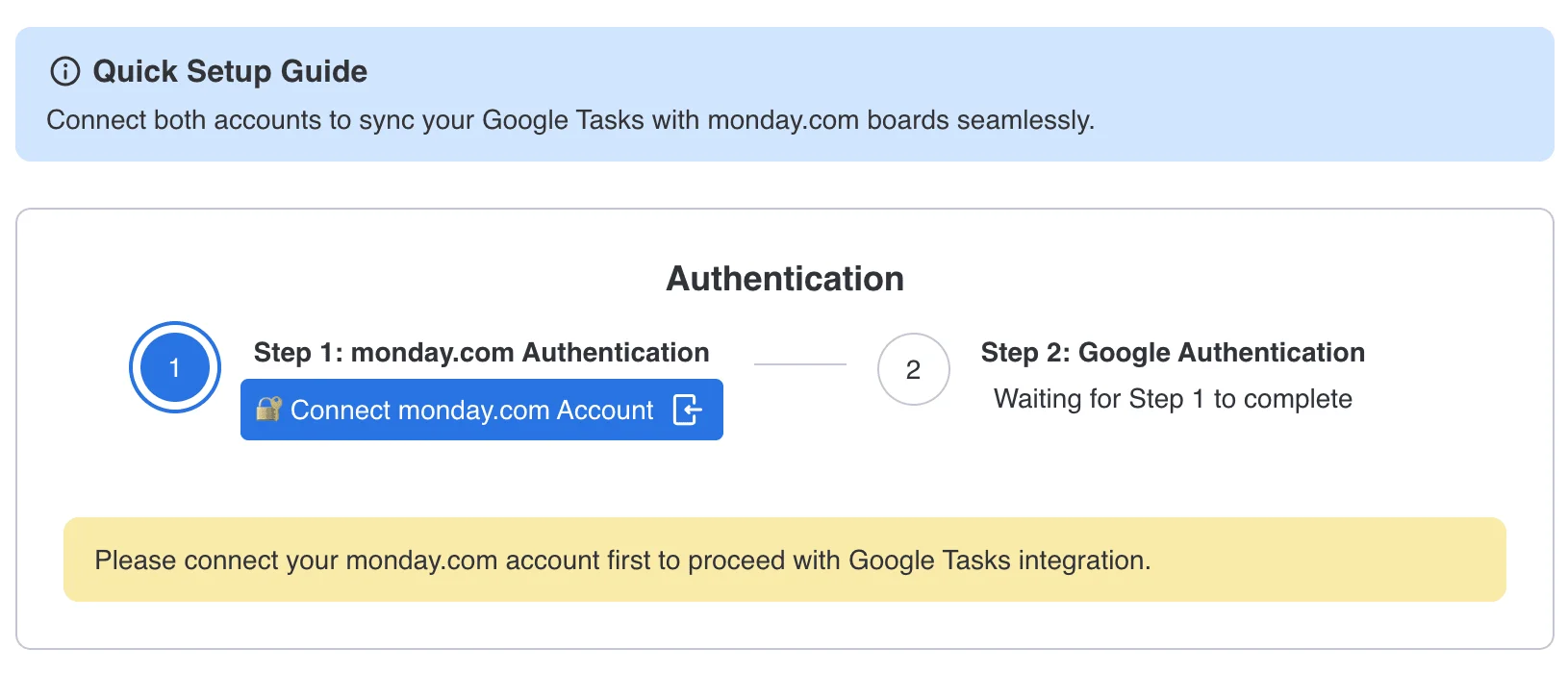
- Step 2: Authenticate with Google
Grant access to the Google account you want to sync.
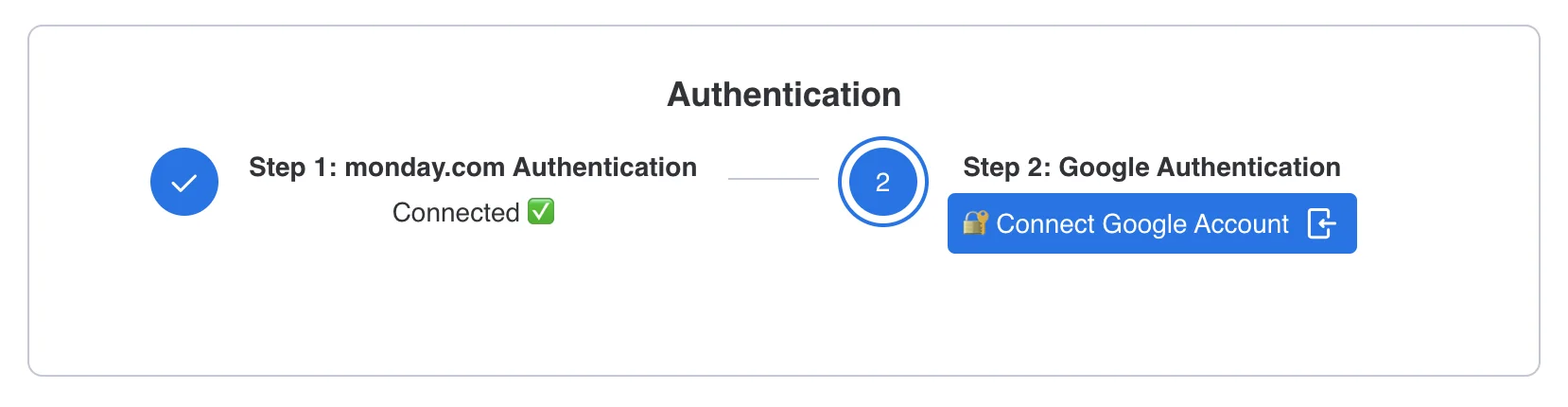
💡 Need to switch accounts later? Just disconnect your current Google account and re-authenticate with another.
Once installed and connected, your sync setup is ready for the mapping configuration.
More in Google Tasks & Calendar Sync (monday.com)
- Key Features & How It Works
- What is Google Tasks & Calendar Sync for monday.com? What does this app do?
- Billing and Refund Policy
- Upgrading or Downgrading Plans
- Plan & Pricing
- Do I need to connect both accounts?
- How can I change the Google account?
- Google Tasks & Calendar Sync – Installation & Setup Guide