
If you’d like to connect this board to a different Google Tasks or Calendar account:
- Go to your current integration settings.
- Click your connected Google account to disconnect.
- Restart the setup and authorize the new Google account you want to use.
This is handy if you need to switch to another Google account or connect a different Tasks list.
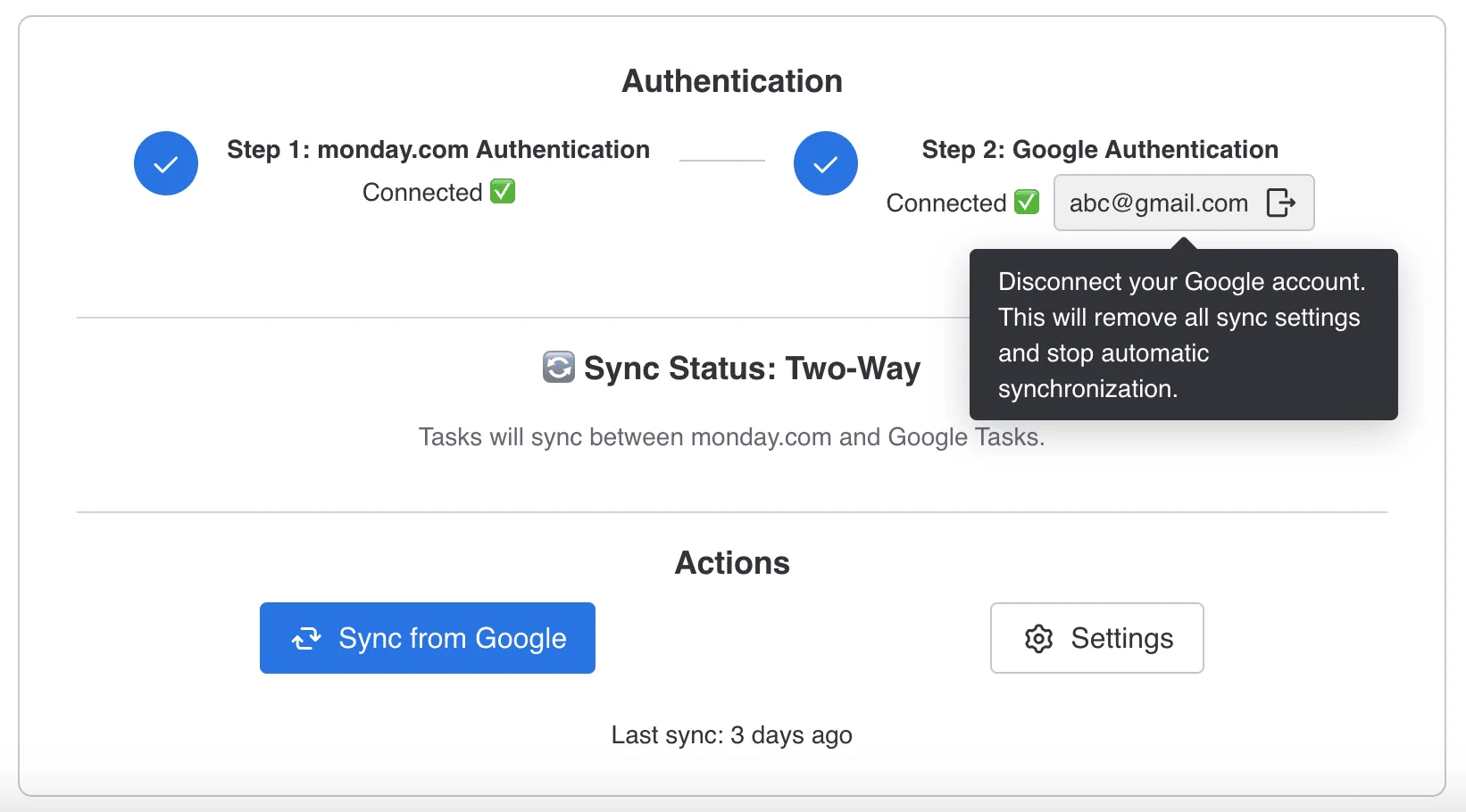
You’ll need to re-authenticate if you want to sync again.
Nothing will be deleted from your Google list or from any monday.com group.
More in Google Tasks & Calendar Sync (monday.com)
- Key Features & How It Works
- What is Google Tasks & Calendar Sync for monday.com? What does this app do?
- Billing and Refund Policy
- Upgrading or Downgrading Plans
- Plan & Pricing
- Do I need to connect both accounts?
- Google Tasks & Calendar Sync – Installation & Setup Guide
- How to Install Google Tasks & Calendar Sync?