
What is Chat Button
For Shopify store owners, providing quick and accessible customer support is essential to standing out in today’s online shopping world.
Chat Button is designed to meet this demand by bringing together multiple social channels—such as Instagram, WhatsApp, X, and more—into one chat box on your Shopify store. With Chat Button, customers can reach you on the platform they’re most comfortable with, whether it’s social media or direct messaging.
Follow this guide to install and customize Chat Button in just a few steps to your Shopify store.
Add Chat Button to Shopify store
By following these step, you can easily add a chat button to your WordPress site, enabling better communication with your customers.
- Go to Chat Buttons and complete the setup for your Chat Button. This will apply a fixed configuration on your page.
For more details on customization, see our guide on How to Customize Chat Button Step 1-3.
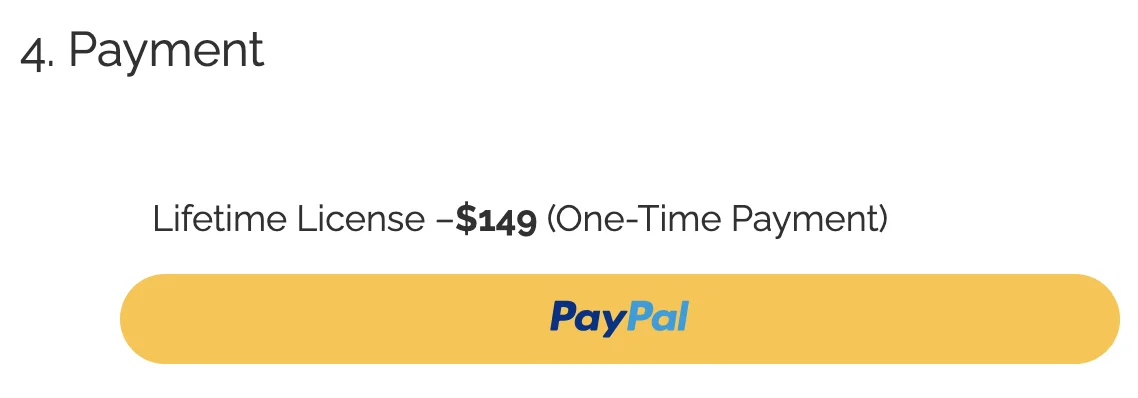
- Once you've completed steps 1, 2, and 3 of the setup, proceed to step 4 to make your payment.
-
After completing the payment, you’ll receive an email from us containing important information, including your Unique Script.
-
Open your email and locate Your Unique Script.

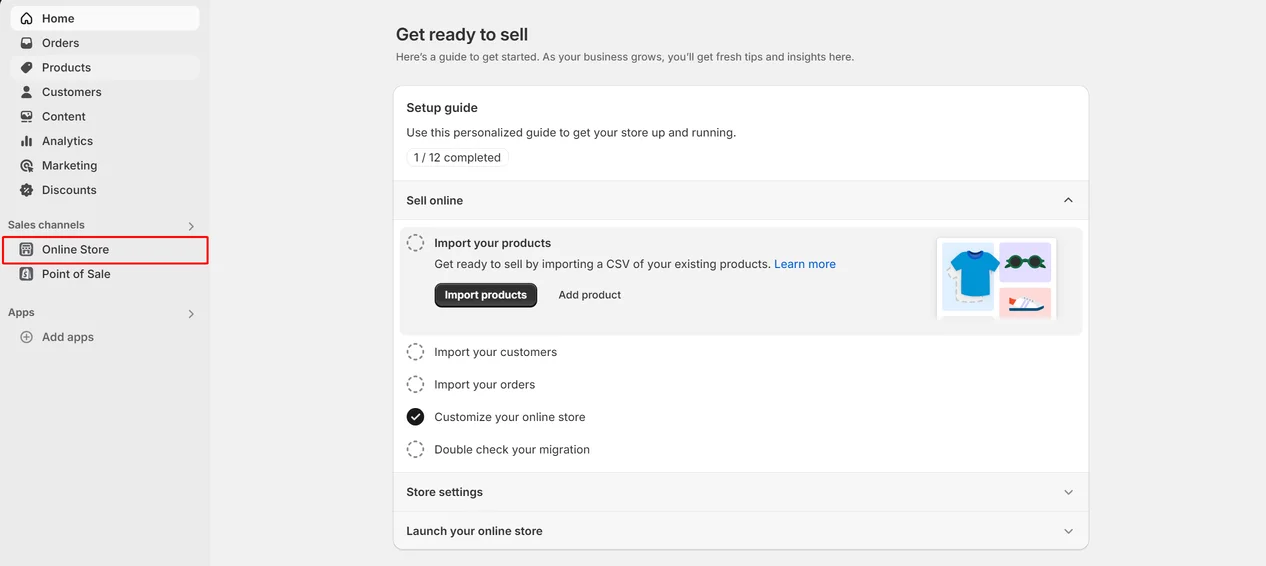
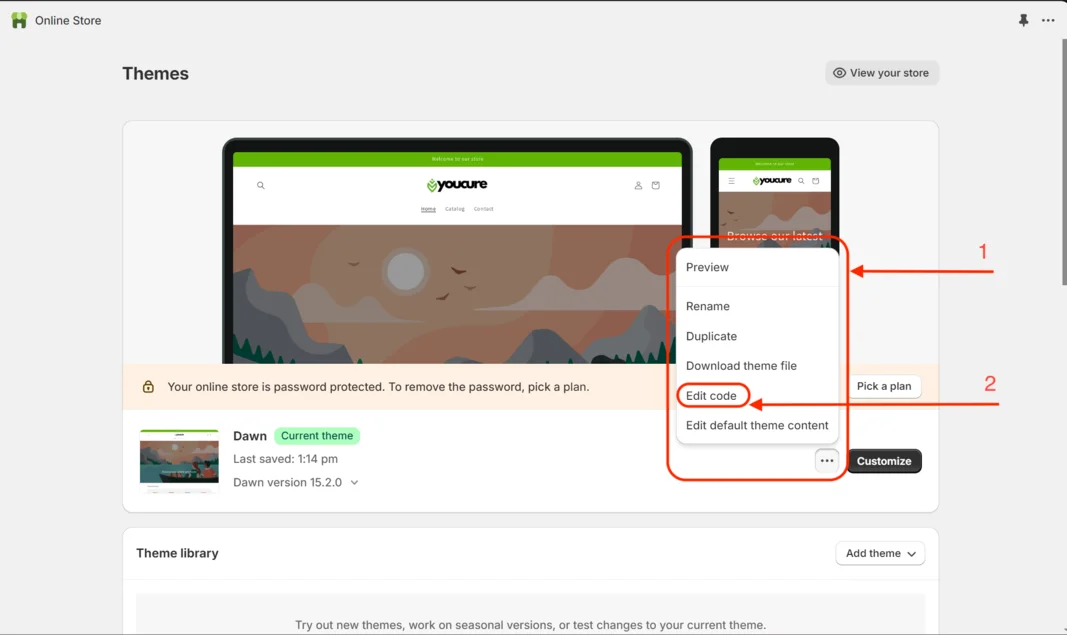
- In your Shopify store, navigate to Online Store > Theme.
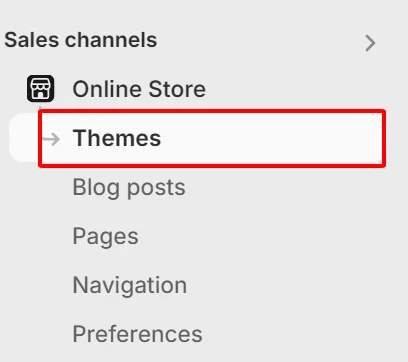
- Click on the settings icon, then select Edit code to access the code editor.
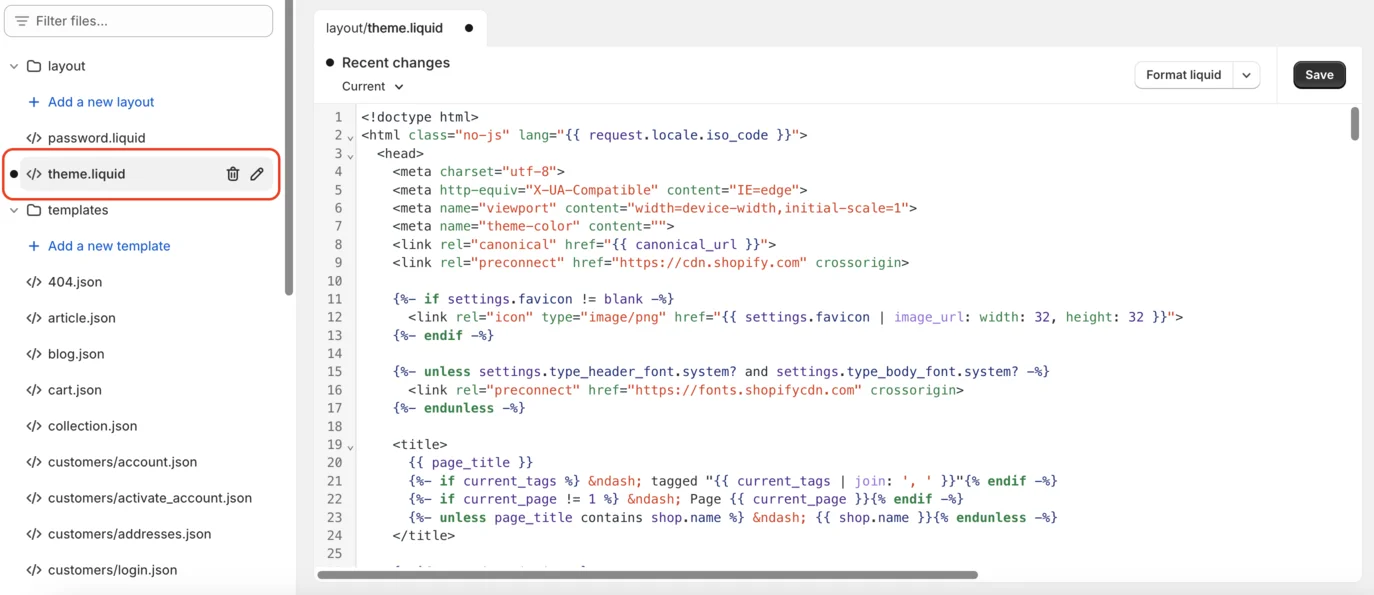
- In the code editor, open theme.liquid.
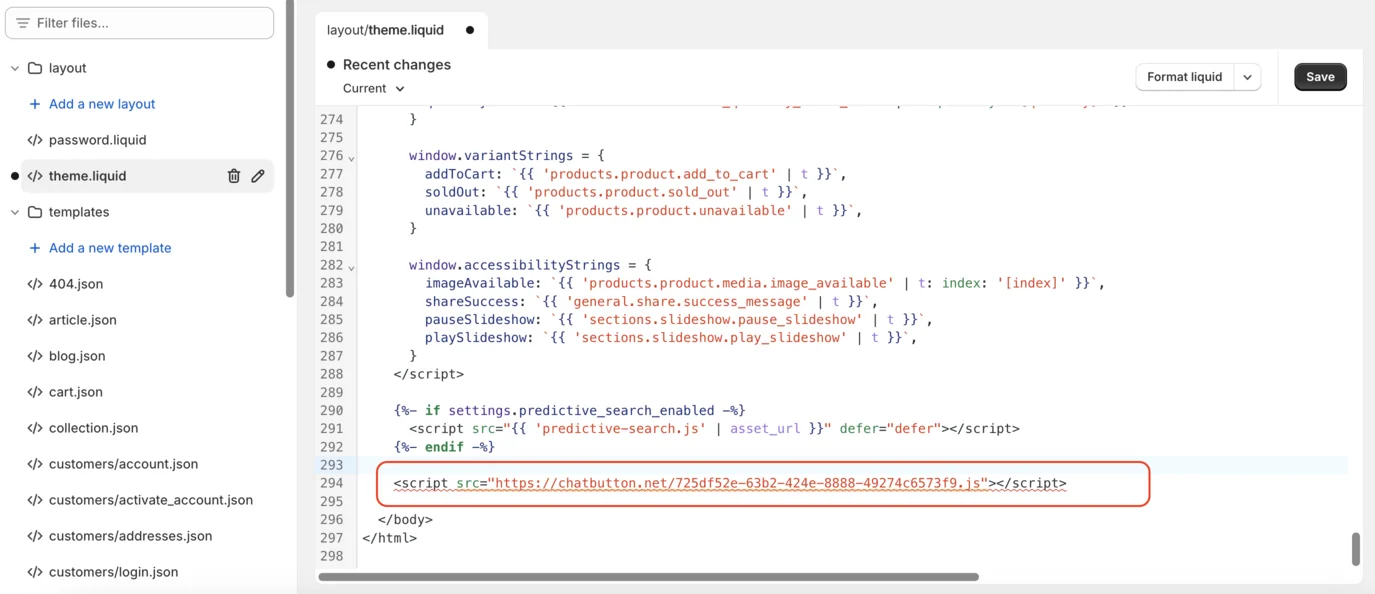
- Scroll down to the bottom of the code. Just before the
</body>tag, paste the script from your email.
- Check your website to ensure the button appears correctly. If you encounter any issues, please reach out to us via email for support.
By following these steps, you can easily add a chat button to your Shopify site, allowing seamless communication with the customer.

Related articles
 14 May, 2025
Boost Product Visibility in ChatGPT: A Complete Setup Guide
Sometimes, customers are just one step away from buying—but then they leave. Maybe they got distracted. Maybe they weren’t sure. Whatever the reason, that exit click doesn’t have to be the end of the story.
14 May, 2025
Boost Product Visibility in ChatGPT: A Complete Setup Guide
Sometimes, customers are just one step away from buying—but then they leave. Maybe they got distracted. Maybe they weren’t sure. Whatever the reason, that exit click doesn’t have to be the end of the story.
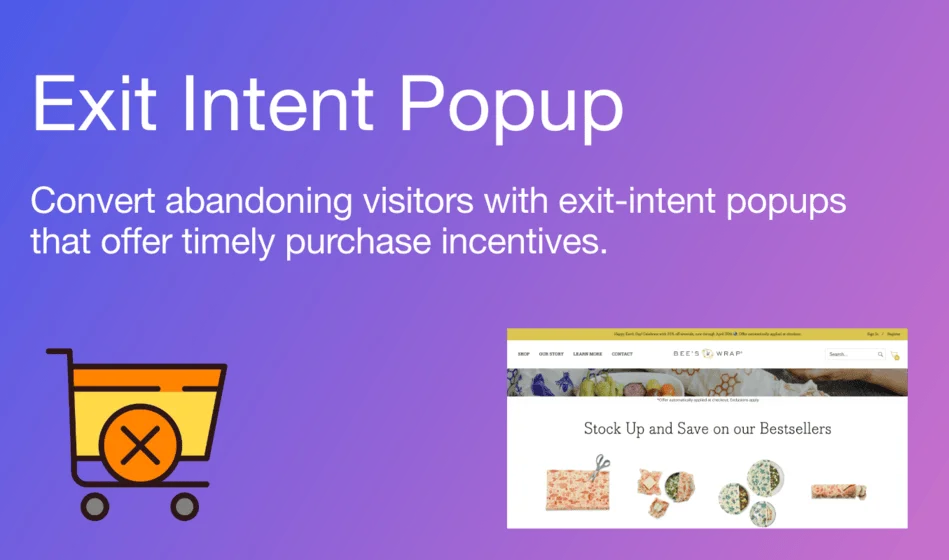 09 May, 2025
Exit-intent Popup Shopify Guide: Keep Visitors from Leaving your Store Without Buying
Sometimes, customers are just one step away from buying—but then they leave. Maybe they got distracted. Maybe they weren’t sure. Whatever the reason, that exit click doesn’t have to be the end of the story.
09 May, 2025
Exit-intent Popup Shopify Guide: Keep Visitors from Leaving your Store Without Buying
Sometimes, customers are just one step away from buying—but then they leave. Maybe they got distracted. Maybe they weren’t sure. Whatever the reason, that exit click doesn’t have to be the end of the story.
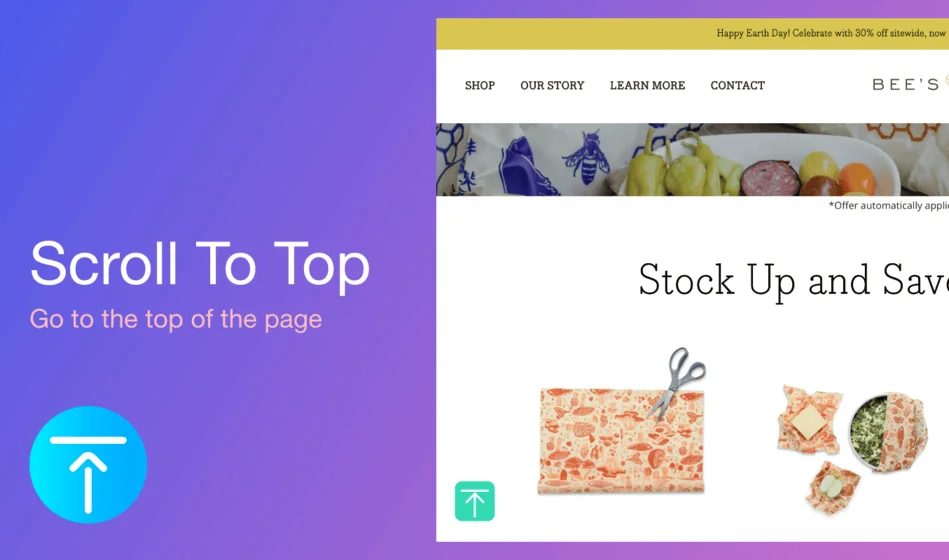 29 Apr, 2025
How to Add a Back to Top Button to Make Your Shopify Store Smoother and More User-Friendly
Users often have to scroll endlessly on long product or blog pages to return to the top. This friction can hurt navigation and overall user experience—especially on mobile.
29 Apr, 2025
How to Add a Back to Top Button to Make Your Shopify Store Smoother and More User-Friendly
Users often have to scroll endlessly on long product or blog pages to return to the top. This friction can hurt navigation and overall user experience—especially on mobile.